02 - The Web UI
In this tutorial you’ll bring up the Cloacina web UI, connect it to a
running cloacina-server, and watch a workflow execute in real time.
By the end you’ll know how the UI authenticates, where each control
plane view lives, and how the live execution stream works.
What you’ll learn
Section titled “What you’ll learn”- How to stand up the full UI demo stack with one command.
- How to connect the UI to a server with a tenant API key.
- How to upload a packaged workflow, execute it, and follow the run live as its events stream in.
- Where the demo’s continuous workload comes from so there’s always something to watch.
Prerequisites
Section titled “Prerequisites”- A checkout of the cloacina repository with
angrealand Docker (including Compose) available. Everything else — the server, compiler, execution-agent fleet, and UI — builds and runs inside containers, so you don’t need Rust or Node installed on your host.
Step 1 — Bring up the stack
Section titled “Step 1 — Bring up the stack”From the repo root:
angreal ui upThis builds and starts the docker compose demo stack: PostgreSQL, Kafka,
a CORS-enabled cloacina-server, an in-cluster cloacina-compiler (so
packages you upload actually build), a 3-agent execution fleet that runs
the work, a one-shot packer + seed that loads the demo packages, and a
live computation-graph producer. The first run builds images and
compiles the demo packages, so it takes a few minutes. When it’s ready
it prints the connection details:
UI: http://localhost:8080 Server: http://localhost:8080 Connect with → server: http://localhost:8080 api key: clk_demo_bootstrap_key_0001 tenant: publicThe UI and the API share one origin — the web UI is embedded in
cloacina-server (see Embedded Web UI).
Why the compiler?
cloacina-serverdoes not build uploaded packages itself — a separatecloacina-compilerpolls the database and compiles them. The demo stack runs one for you; without it, uploaded workflows would sit inpendingforever.
Step 2 — Connect
Section titled “Step 2 — Connect”Open http://localhost:8080. You’ll land on the Connect screen, with
the server URL and tenant (public) prefilled. Paste the bootstrap API
key printed above and click Connect. The key is held in
sessionStorage for the tab only — closing the tab clears it.
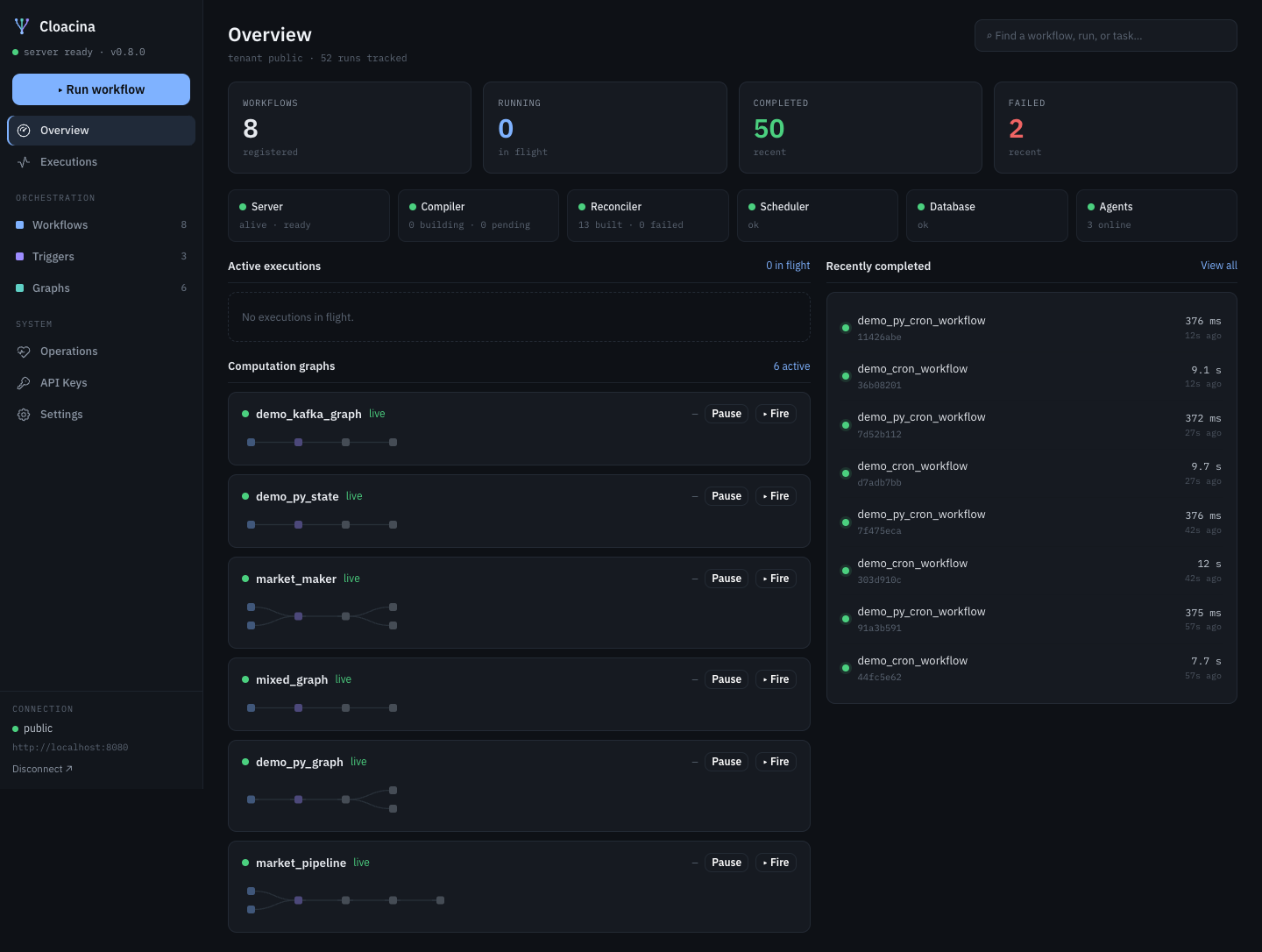
You’re now on the Overview dashboard: a status rollup, a graph summary, and the most recent executions.
A tour of the views
Section titled “A tour of the views”The console is organized into Orchestration (Workflows, Triggers, Graphs) and System (Operations, Agent fleet, API Keys, Accounts, Settings) sections. Here’s what each view gives you.
Overview
Section titled “Overview”The landing dashboard: counts for registered / running / completed / failed runs, a live service health row (server, compiler, reconciler, scheduler, database, agents), the in-flight executions, a computation-graphs summary, and the most recent completed runs.
Workflows
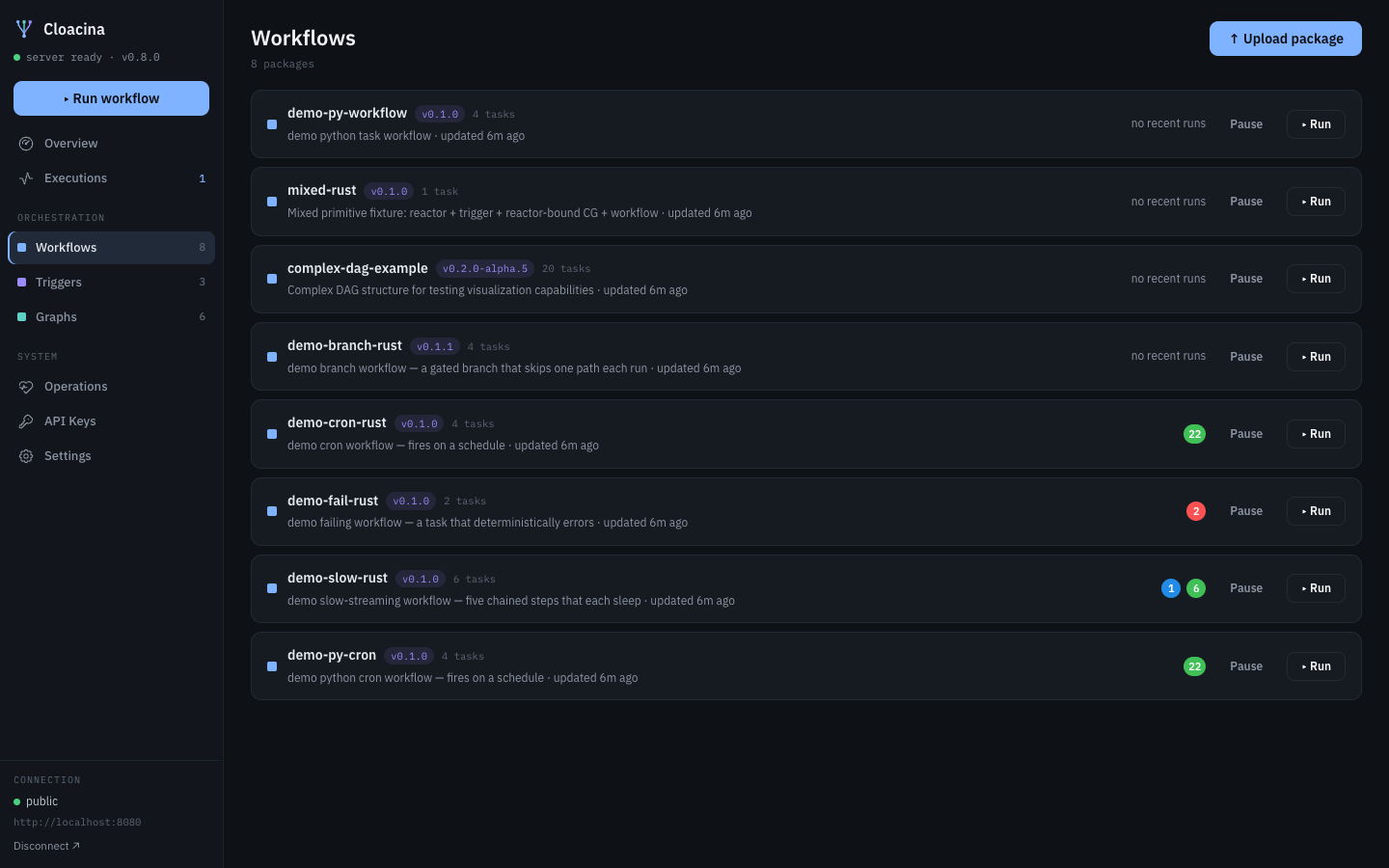
Section titled “Workflows”The package catalog as a table — package, version, task count, last
update, a recent-runs strip (one dot per run, colored by outcome), and
per-row Pause and Run action columns. Upload package registers
a new .cloacina archive.
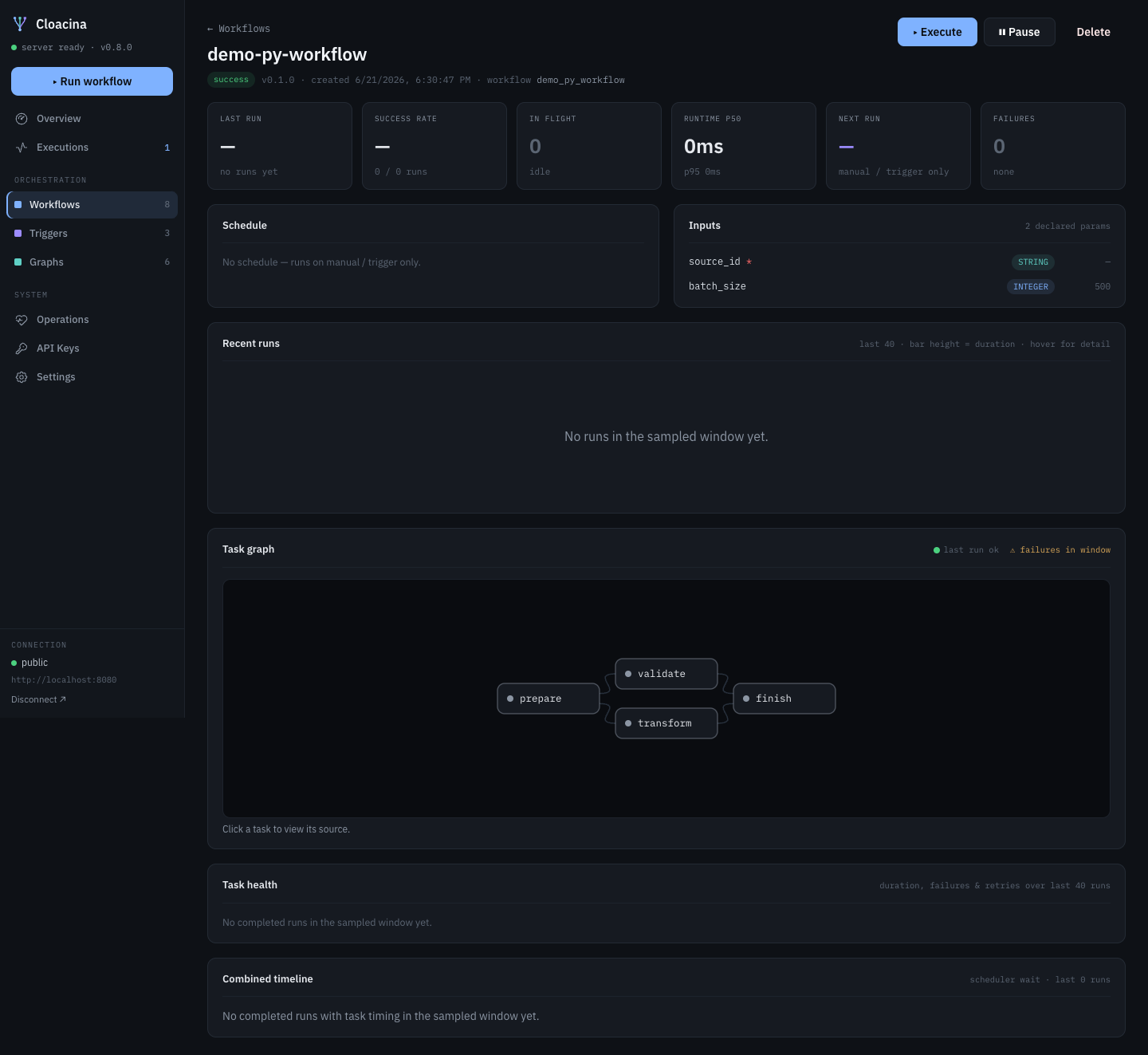
Opening a workflow gives you two views behind a tab switcher:
- Current execution (the default): the most recent — preferring a live — run of this workflow, rendered as the full execution view (status-colored DAG, task table, timeline, streaming event log) with a link out to the standalone execution page.
- Operational history: aggregates over the recent runs — a summary strip (runs analyzed, success rate, average wall-clock, failed runs), a per-task outcomes table (completed / failed / skipped / retried counts and average duration ± σ), an average task timing gantt with variance bands, the task DAG, a recent-runs heatmap, and any named instances.
Executions
Section titled “Executions”Every run, newest first, with status and timing.
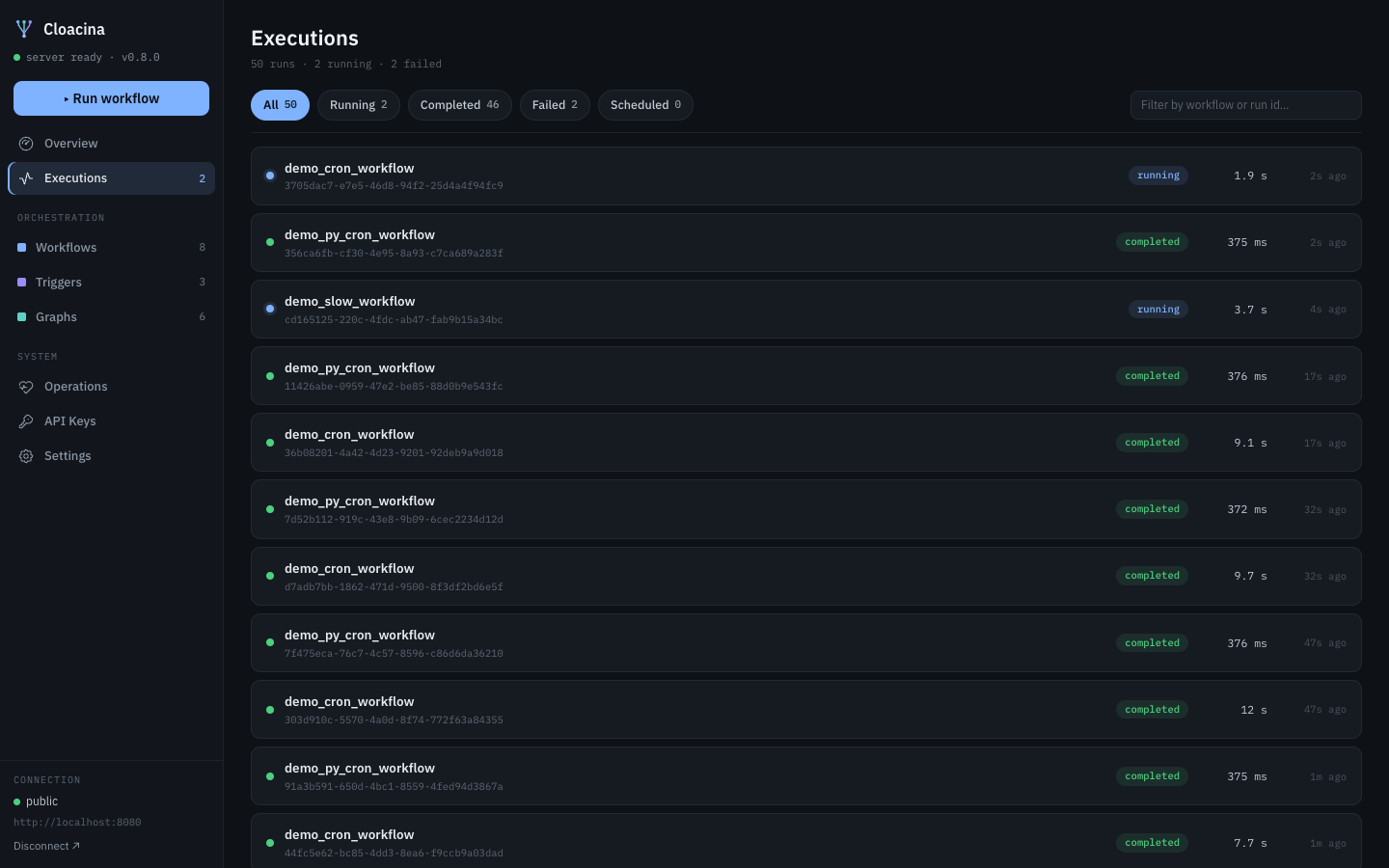
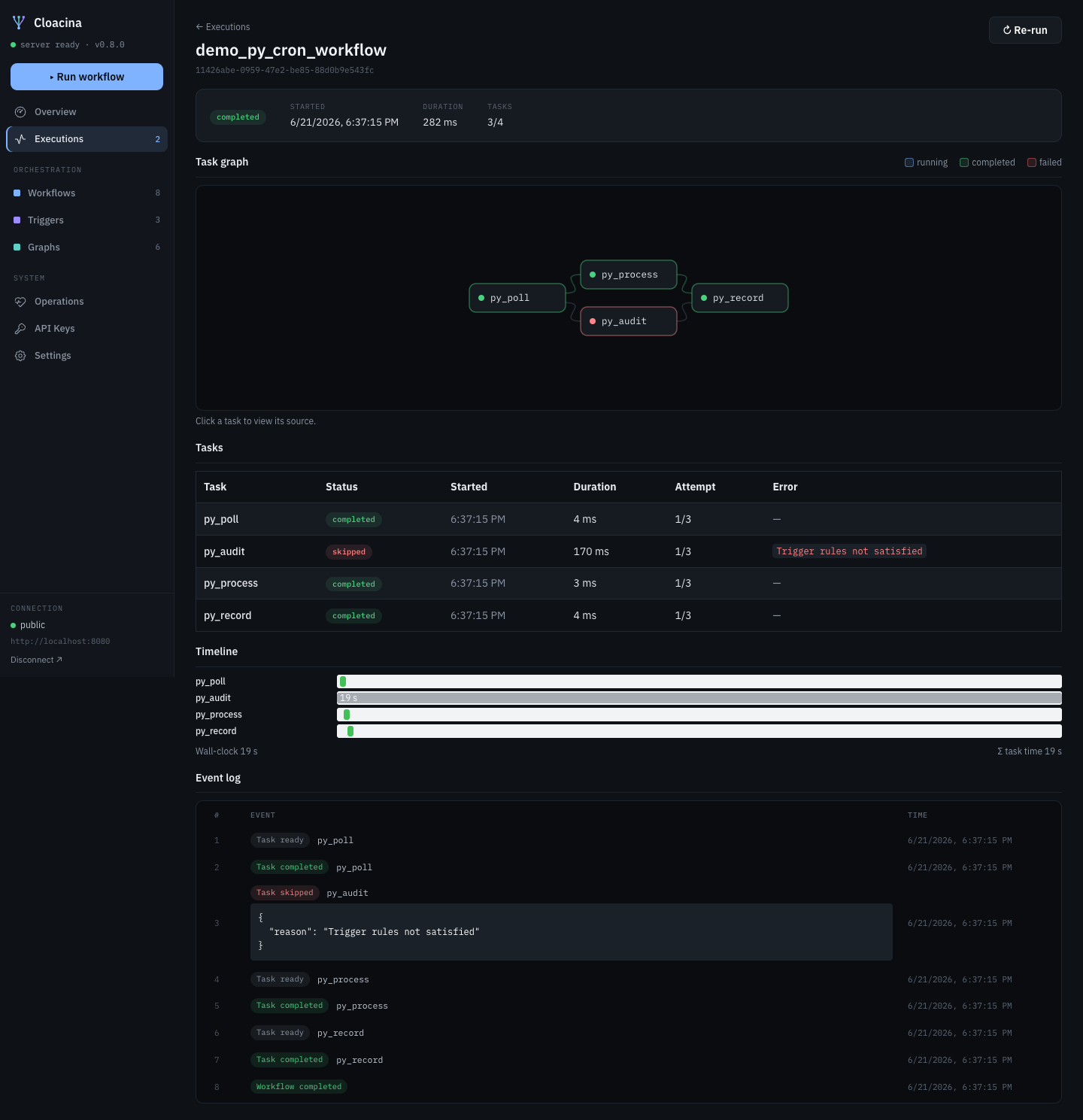
An execution’s detail shows the task graph colored by status — running (blue), completed (green), failed (red), and skipped (salmon, dashed: a branch not taken) — the task table, a timeline, and the live Event log. Click any task node to view just that task’s definition.
Triggers
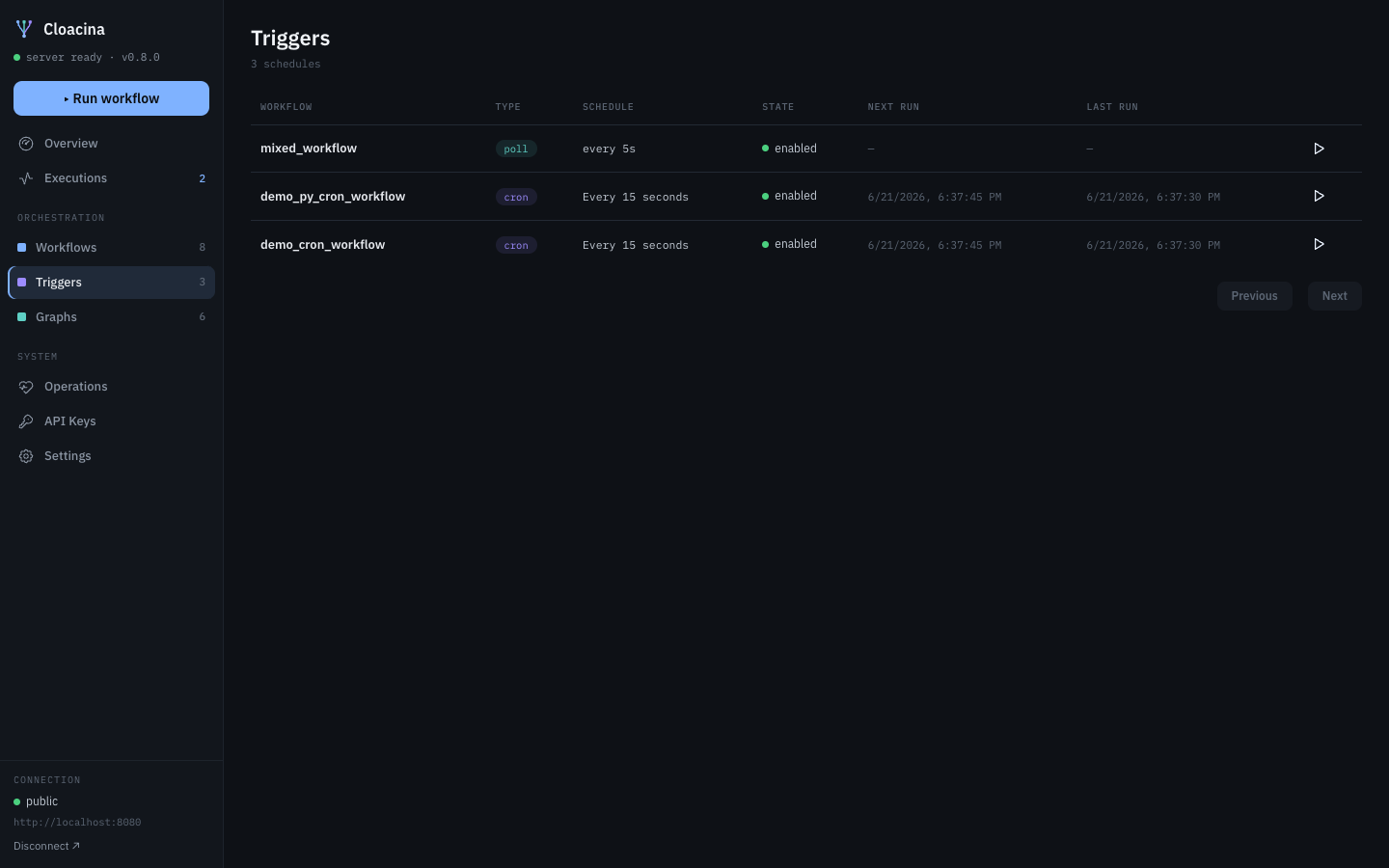
Section titled “Triggers”Two sections — Cron schedules (wall-clock expressions with absolute next/last run) and Polling triggers (evaluated every poll interval; last/next derive from the scheduler’s real poll cadence and tick live). Each row has headed Fire (⚡ push an event to the trigger, fanning out to its subscribers) and Run (▶ run the workflow now) action columns.
Graphs
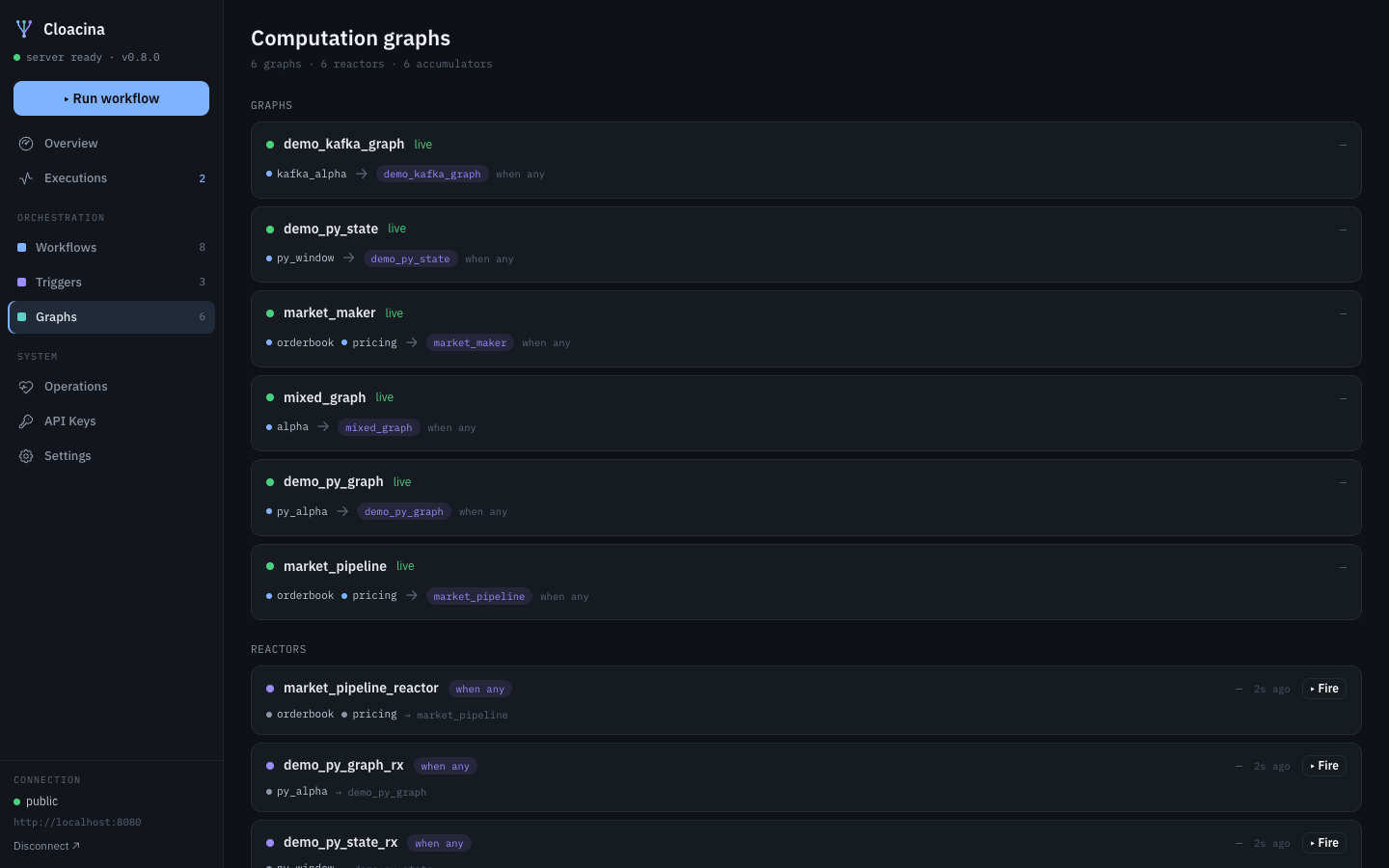
Section titled “Graphs”An operational dashboard over the computation graphs: an overview strip (graphs running, total fires, last fire, accumulators live, most active graph) above the graphs / reactors / accumulators sections, with per-graph fire rates and inline force-fire on each reactor.
A graph’s detail has two views behind a tab switcher: Live — the
topology (accumulators → reactor → compute nodes) and an accumulators
table showing availability (a socket_only source is healthy: the ingest
endpoint is up), event counts, and last-event age — and Operational
history — a fires-per-minute sparkline for the last hour and a recent
fires log with per-fire outcome, duration, and inputs.
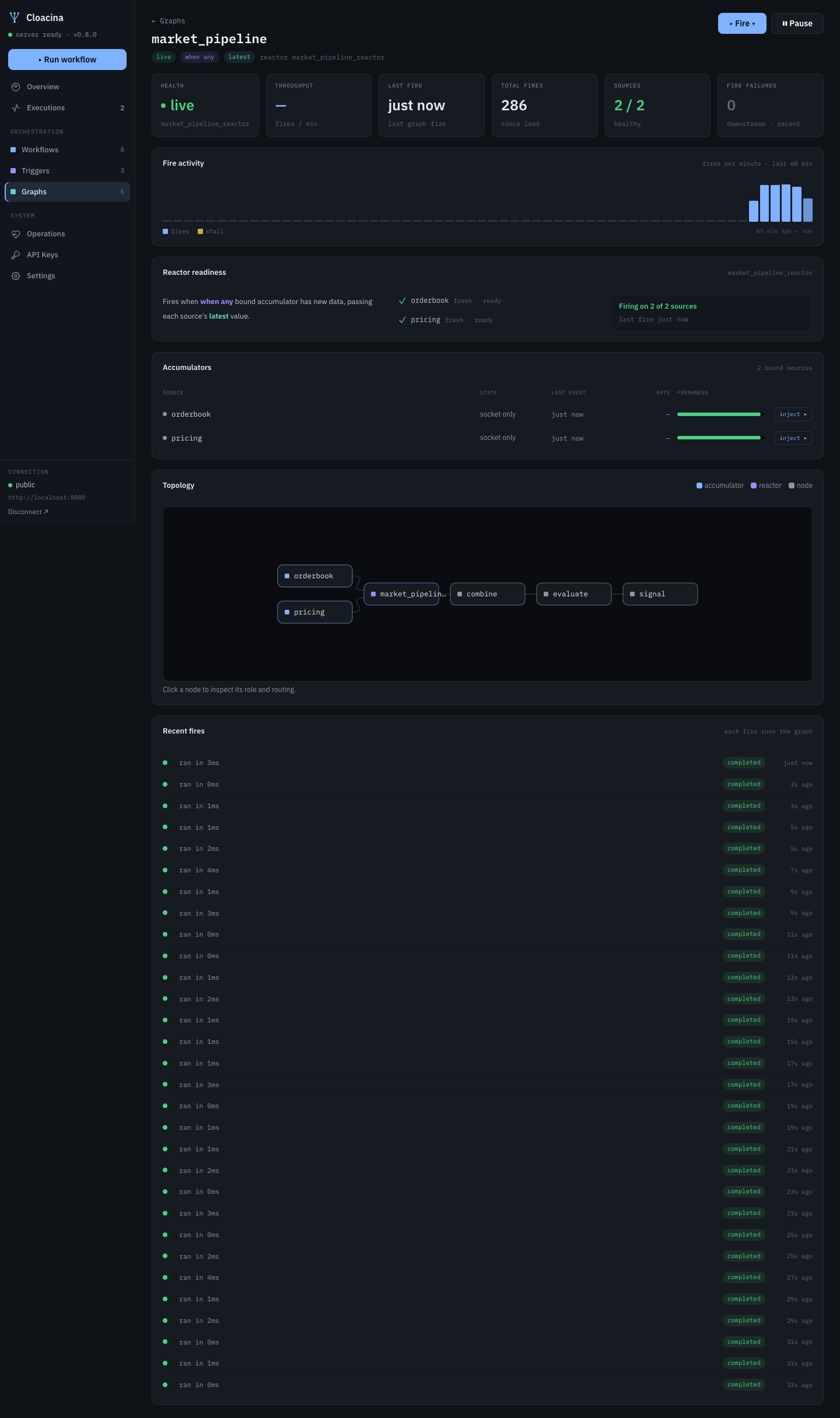
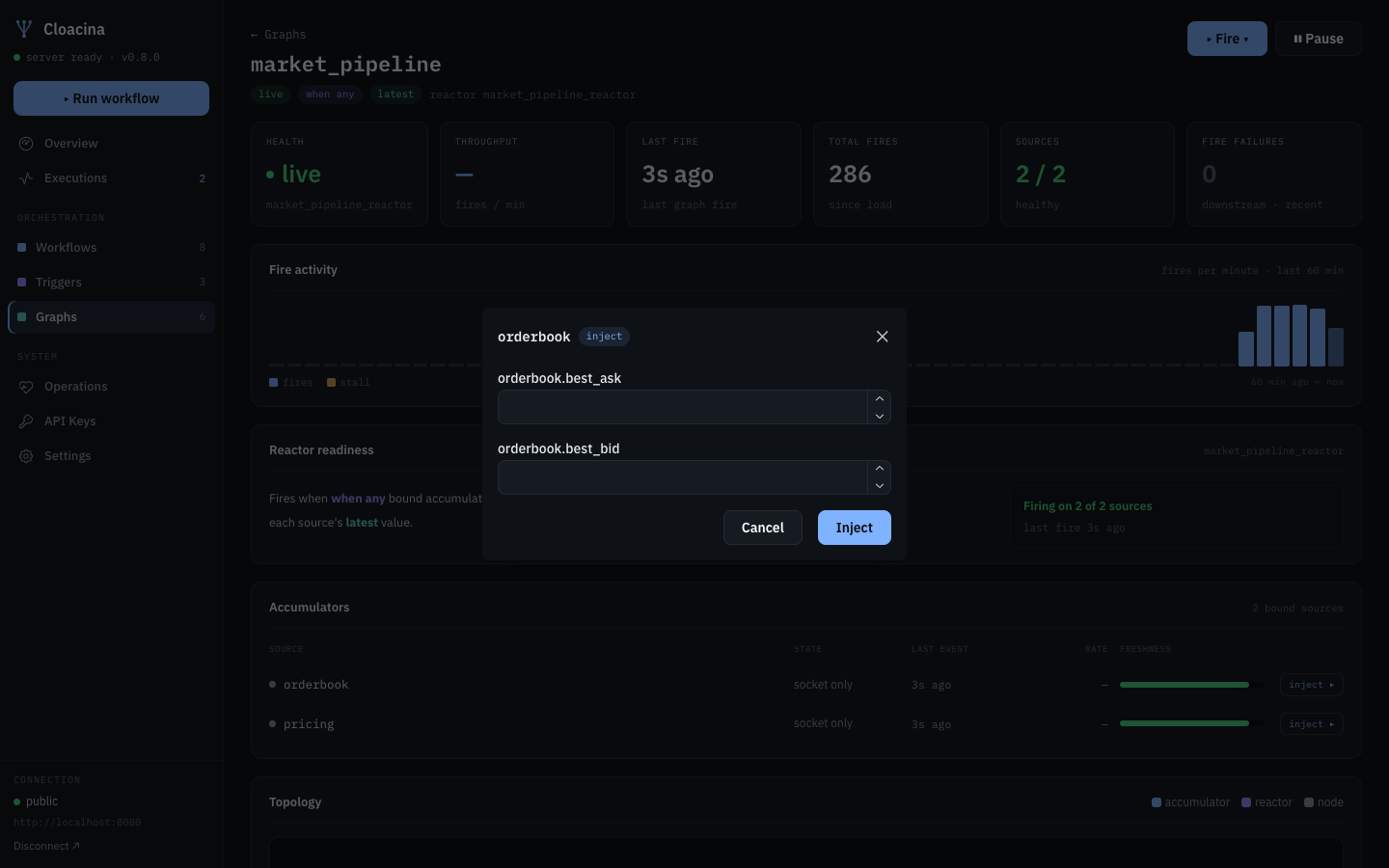
You can drive a graph by hand: Force-fire fires the reactor (with typed inputs if it declares them), and each accumulator row’s inject opens a typed form built from the source’s declared boundary schema.
Agent fleet
Section titled “Agent fleet”Under System, the Agent fleet view shows this tenant’s execution-agent pool: Provisioned (the requested count), Running (agents currently registered), and the tenant’s Effective limit. A tenant-admin can scale the pool inline — Provision +1 (disabled at capacity) and Deprovision −1 (floor 0); read-scope users see the numbers without the controls. The controls are role-gated client-side, but the server enforces the same authorization regardless. See Execution-Agent Fleet.
Step 3 — The demo is already live
Section titled “Step 3 — The demo is already live”You don’t need to seed anything. The stack ships with a continuous
workload: a driver fires demo_slow_workflow runs on an interval, a cron
trigger and a poll trigger fire on their own schedules, and the producer
streams market data into the computation graphs so they keep firing. So
the Executions, Triggers, and Graphs views all have live
activity from the moment you connect.
The demo also loads a spread of example packages — including a complex
20-task DAG (complex_dag_workflow) and several computation graphs — so
the catalog reflects real structure, not just toy single-task workflows.
Step 4 — Watch a run live
Section titled “Step 4 — Watch a run live”Go to Executions. You’ll see runs accruing. Click an in-flight
demo_slow_workflow run: its detail view shows a live badge and the
Event log streams task events in as each of the five steps
completes, then flips to a terminal status when the run finishes. This
is the live delivery stream — the same WebSocket the SDK exposes,
deduplicated on sequence number.
Open a failed run to see its error and event history — the
debugging surface for demo_fail_workflow.
Step 5 — Upload and execute your own
Section titled “Step 5 — Upload and execute your own”Go to Workflows → Upload, choose a .cloacina package, and upload
it. Once the compiler finishes building it, open its detail page and
click Execute (optionally with a JSON context) to start a run and
hand off to the live view.
What’s next
Section titled “What’s next”- Deploy the web UI as a container against any server.
- Manage tenant API keys from the API Keys view (create shows the key exactly once — copy it then).